Export a PDF for printing
Make a print-ready PDF of your document.
Who this guide is for
Anyone who has to hand a bulletin or flyer to a printer or a copier
What you will do, in one sentence
Check the document, choose a preset, and save the PDF.
Screens captured from the Foliolum demo organisation on 2026-11-26. Every name, address and number on the screens is invented. Prepared 26 November 2026.
Foliolum exports a PDF you can print or send to a print shop.
Watch it
Before you start
- A document open in Foliolum.
Steps
1. Check the document
- Choose the File tab, then Before you print.
- A panel opens at the bottom of the window. It says No errors when nothing needs fixing, and lists problems when something does.
- Fix what it lists, then check again.
2. Open the export dialog
- Choose PDF for printing… in the File tab. It sits in the Print and share group.
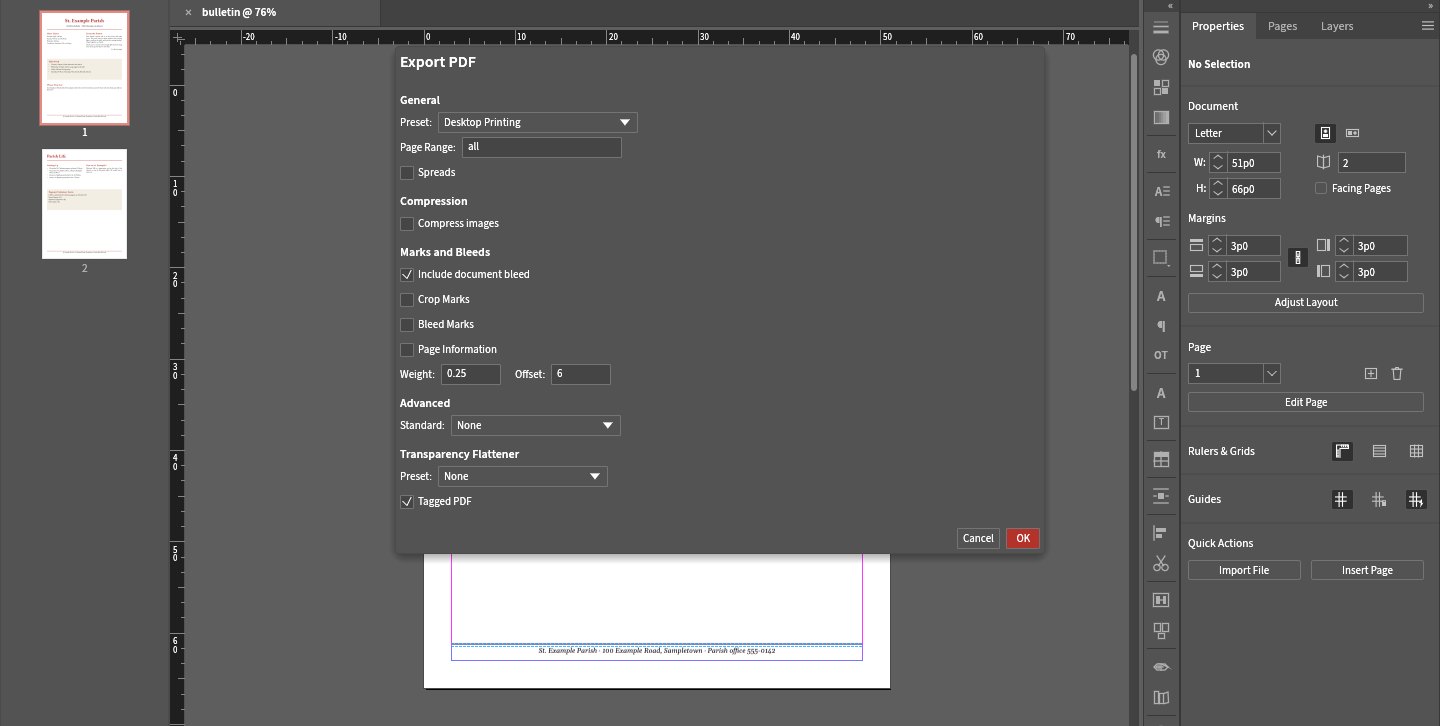
- The Export PDF dialog opens.
3. Choose your settings
- Pick a Preset. Desktop Printing is the default.
- Leave Page Range on
all, or type the pages you want. - If your printer needs them, tick Crop Marks or Bleed Marks. Include document bleed is on by default.
- Tagged PDF is on by default. It helps screen readers read the PDF.
4. Save the PDF
- Press OK.
- Your browser saves the PDF as a download.
You should see: a PDF file in your downloads folder. Open it and check every page before you print.